
JOURNEY SHARING. HUMAN CONNECTION.
SafeTripAlert
On your way.
Not out of touch.
Let someone you trust follow your journey. Share your location as you travel, request help with SOS, and let them know when you arrive.
Use in your browser · Free plan available
Tracking keeps people informed. It cannot guarantee safety.
Live updates and alerts depend on your phone and connection.
Share the journey
Let them follow your progress
Keep your people close
A friend, a parent, a partner
Close the loop
Confirm when you arrive
THE JOURNEY, TOGETHER
Four steps. Someone in the loop.
From setting up your account to letting someone know you have arrived.
Add a Trusted Contact
Create an account, then add a friend or family member you want to keep informed. Ask them to look out for your updates.
Start your journey
Choose where you are going, allow location access on your phone, and start tracking when you leave.
Share your journey link
Your contact can open your tracking link in a browser. Message delivery depends on the channel and connection.
Let them know you arrived
Tap “Arrived Safely” when you reach your destination. Automatic arrival detection can also recognise when you are nearby.
SEE THE STEPS
Your first journey with SafeTripAlert
Add a trusted contact
Open Add Trusted Contact. Enter their name, phone number with country code and relationship, then save. Ask their permission first.
Start your journey
Choose Start Safe Journey, enter your destination if you want, allow location access and tap Start Journey. Share the tracking link privately.
Confirm arrival
Tap Arrived Safely. Enter your normal safety PIN if asked and check that the journey is Completed. Automatic arrival notices do not stop tracking.
Fictional demo. Live updates and alerts need your phone, location permission and connection.
What tracking can—and cannot—do
SafeTripAlert helps people you trust see your progress and receive requests for help. It cannot prevent an accident, assault or abduction, guarantee your safety, or guarantee a response.
Live updates need location access, battery power and a connection. A dead phone cannot send updates. With no connection, your contact may see only your last received location; saved locations can sync when you reconnect, but that is not live tracking.
Alerts may be delayed or fail because of network or messaging-service limits. In an emergency, call local emergency services if you can. SafeTripAlert does not replace them.

Keep someone in the loop.
Heading home, commuting or travelling to another city? Share your journey so someone you trust can check your progress instead of waiting for your next message.
- Share your live location with one tap
- Arrival detection when your phone is near your destination
- SOS panic button for emergencies
- Your contact opens the link in a browser
MORE THAN A DOT ON A MAP
Tools for keeping people informed
Location sharing, check-ins and alerts to support your journey—not a promise of protection.
Real-Time GPS Tracking
Your contact can follow location updates on a map. Update speed and accuracy vary with your phone, location permissions and connection.
Secure & Private
Share your journey link only with people you trust. Anyone with a valid link may be able to view the journey.
SOS Panic Button
Use SOS to request help from your trusted contacts and share your available location. Sending an alert does not mean it has been received or read.
Voice-Activated SOS
Enable voice SOS on a supported browser to request help hands-free. It needs microphone access and may not recognise every spoken request.
Fake Call Generator
Play a pretend incoming call when you want a reason to leave a conversation. It cannot ensure you can leave safely.
Deadman Switch
Set an expected arrival time. If you have not confirmed arrival by then, the app can send an overdue alert to your contacts.
Geofence Auto-Arrival
The app can recognise when your phone is near your destination. Check that your journey has ended and confirm arrival if needed.
Safe Zones Map
View places and reports on a map. A marked area or community report is not a guarantee that a place is safe.
QR Code Sharing
Generate a scannable QR code for your journey link — share instantly with friends or drivers.
Emergency Auto-Dial
Open your phone’s dialler for listed emergency numbers and view your available coordinates. Check the correct number for your country.
Multi-Language SOS
Send pre-written SOS messages in 10+ languages — critical when traveling abroad.
Contact Check-Ins
Trusted contacts can send you "Are you okay?" check-in requests directly through the app.
AI Route Risk Scoring
View an automated estimate of route risk. It may be incomplete or wrong and cannot predict whether a journey will be safe.
Persistent Notifications
All your safety alerts are saved — view, manage, and review them anytime, even after a page refresh.
Dark Mode
Easy on the eyes with a beautiful dark theme that follows your system preference.
Install as App
Add SafeTripAlert to your home screen for instant one-tap access — works like a native app.
SOS Panic Button
If you need help, use SOS to send an alert to your trusted contacts with your available location and journey link. Delivery can be delayed or fail. SOS does not call emergency services or guarantee that someone will respond.
- One-tap emergency alert
- Shares your available location
- Requests alerts to your trusted contacts
- Includes a map link when location is available
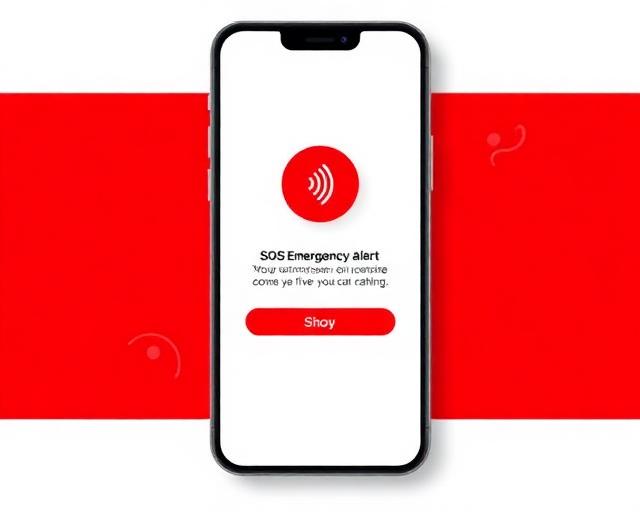

Choose who follows your journey
Add a partner, parent, sibling or friend and agree on what they should do if you request help or are overdue. They can follow your journey by opening your link in a browser—no app installation needed on their side.
Your location, your sharing choices
When is my location shared?
When you start a journey and allow location access, SafeTripAlert saves location updates for that journey. Anyone with its valid tracking link can follow those updates. Updates depend on your phone’s battery, location permission and connection; without a connection, people may see only your last received location. An SOS alert can also include your available location.
Who can see your location?
You can view your journeys in your account. People with a valid tracking link can see that journey’s location updates and route without signing in. The link is not restricted to a named contact: if someone forwards it, the recipient can also open it. Share it privately, not on social media.
How do I stop sharing?
Open your active journey and tap “Arrived Safely” to end live updates. If asked for your PIN, use your normal PIN, then check that the journey is marked Completed. Automatic arrival detection can send an arrival notice, but does not itself stop tracking.
Ending a journey stops new updates, not access to its saved route. Anyone with a still-valid link can see past locations. Use the tracking-link expiry setting to limit how long the link works. “No expiry” means the link has no automatic time limit.
Going offline or turning off location access interrupts updates; it does not revoke the link or remove locations already shared. A duress PIN is different from a normal stop: it is designed to keep tracking running quietly.
What happens to saved data?
In Settings, choose to keep completed journeys and their saved locations for 7, 30, 90 or 365 days after completion, or until you delete them. Automatic cleanup checks daily. You can also delete completed history sooner; deleted journeys can no longer be opened through their tracking links. Active journeys and separate SOS records are not deleted by this choice.
Locations saved offline may remain on your phone until uploaded or removed; signing out does not automatically clear them. Use Settings to request account deletion, or submit a deletion request through Data Rights. Messages, copied links and screenshots already received by other people cannot be recalled by SafeTripAlert.
How your contacts get notified
When is a message sent?
When you start a journey, SafeTripAlert can message your trusted contact with your tracking link. An arrival notice goes out when you confirm “Arrived Safely” or automatic detection recognises you nearby, an overdue journey (Deadman Switch) can alert your contact, and SOS sends an urgent alert with your available location.
How the message is delivered
For every message, SafeTripAlert tries WhatsApp first. If WhatsApp cannot deliver it, the same message is sent as an SMS instead. A message that fails to send is retried automatically a few times over several minutes. You can see exactly what was sent, to which number, on which channel, and whether it succeeded in the Message Delivery Center in your account.
What can affect delivery?
- The phone number. Numbers must be complete, including the country code (for example +234…). A wrong or incomplete number fails on every channel — check the number when you add the contact.
- WhatsApp setup. Your contact must have WhatsApp on that number. While SafeTripAlert uses the messaging service’s WhatsApp test setup, your contact must first send the one-time join code shown in your account to our WhatsApp number. If they haven’t, the message falls back to SMS.
- SMS trial limits. While our messaging provider account is in its trial period, SMS can only reach phone numbers that have been verified with that provider. If your contact’s SMS does not arrive, contact us and we will verify their number.
- Your contact’s phone. A switched-off phone, full message storage or weak network can delay or block delivery. A message being sent does not mean it was received or read.
- Your connection. An alert is requested over the internet from your side. With no connection or a dead battery, no alert can be sent — use the in-app emergency dialler to call for help directly.
Delivery is best-effort: SafeTripAlert reports what happened to every message, but it cannot guarantee that a message arrives, arrives on time, or is read. In an emergency, call local emergency services if you can.
Simple Pricing
The Free plan is free forever. Starter and Pro are Free For Now.
Frequently Asked Questions
Questions about journey sharing, alerts, pricing and privacy. Page 1 of 6.